

Why Review Test Cases Before Execution?
A test case that misses a critical scenario, has ambiguous steps, or checks the wrong expected result gives you false confidence: the feature looks validated when it isn't. Reviews catch these problems before execution, when they are cheap to fix.
Common issues caught during review:
- •Missing edge cases: the happy path is covered, error handling and boundary values are not
- •Ambiguous steps: "Check that the page loads correctly" - correct how?
- •Wrong expected results: the expected result describes old or wrong behavior
- •Missing preconditions: the tester gets stuck on step one
- •Redundant tests: the test duplicates coverage another test already gives
When reviews matter most:
- •Regulated environments (healthcare, finance, automotive) that require documented review of test artifacts
- •UAT cycles, where business users execute the tests and the steps must be crystal clear
- •New team members, whose first test cases benefit from an experienced eye
- •High-risk features (payments, security, data integrity)
The same reasoning applies one step earlier: a requirement that was never signed off produces test cases against the wrong target. That's why BesTest uses the same review and approval workflow for requirements too.
Step 1: Set Up Reviews for Your Space
A Space admin decides how strict reviews are, separately for test cases and requirements.
- 1Open Space settings > BesTest > Reviews
- 2Choose the entity tab (Test Cases or Requirements)
- 3Set the Review mode (see the table below)
- 4Set the Approval rule: Any one reviewer, All assigned reviewers, or At least a number of reviewers
- 5Optionally add Default reviewers - they are prefilled when someone submits an item, and the submitter can still add or remove people
| Review mode | What it means |
|---|---|
| Off | No review; items are activated directly |
| Optional | Authors can send items to review, or activate them directly |
| Required | An item only becomes Active (test cases) or Approved (requirements) through review |
Settings save as you change them. Only Space admins can change them; everyone else sees the current values.
Step 2: Submit a Test Case for Review
Before you submit, do a quick self-review: could someone unfamiliar with the feature follow these steps and know exactly what to check?
- •The name says what is being tested
- •Pre-conditions list everything that must be true first
- •Each step is one action with an observable expected result
- •The test case is linked to its requirement
Submit it
- 1Open the test case and go to the Review tab
- 2Click "Submit for Review" (you can also pick In Review from the Status in the Details card)
- 3In the dialog, add one or more reviewers, write Notes for Reviewer (what to focus on), and optionally set a Due Date
- 4Click "Submit for Approval"
The status changes to In Review, and each reviewer gets an in-app notification. Changed your mind? Withdraw moves it back to Draft.
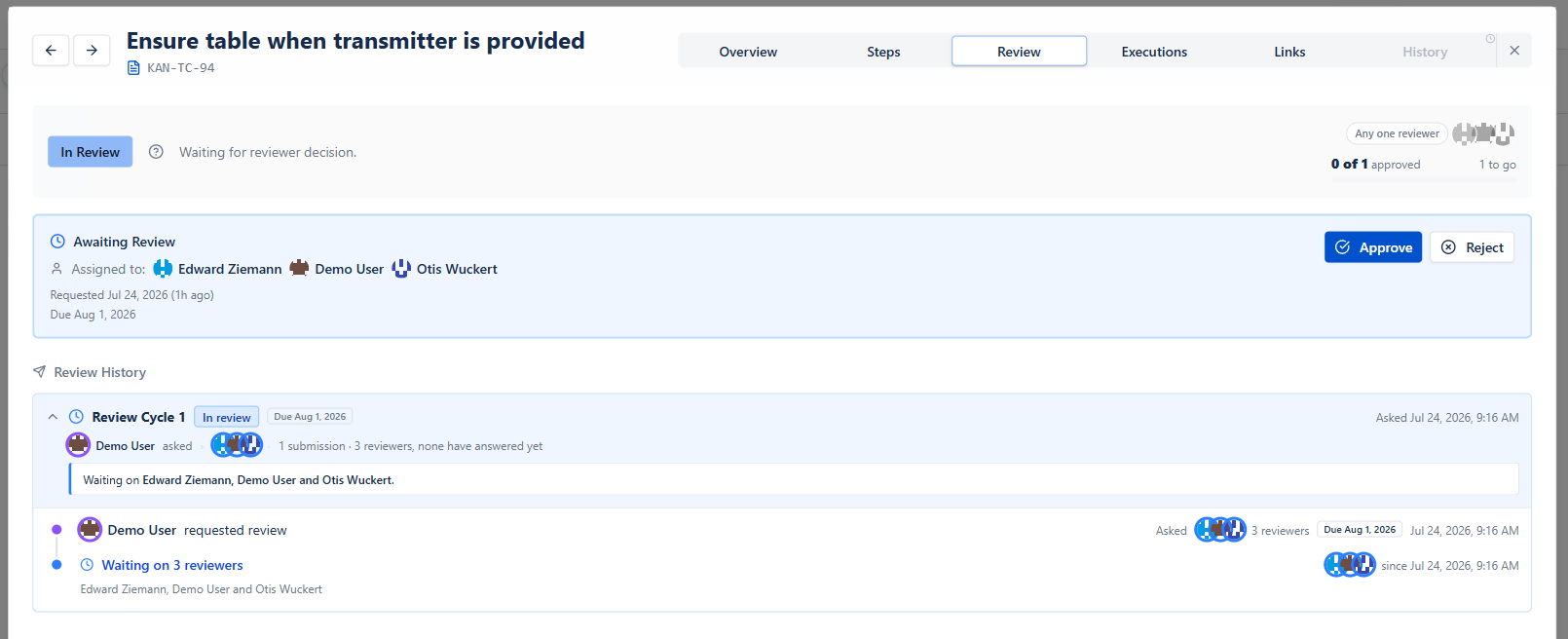
Step 3: Review and Approve (or Reject)
Finding what to review
- •The bell shows a notification for every item sent to you
- •The Pending Reviews gadget lists open reviews on a Jira dashboard
- •In the Test Cases catalog, filter on Status = In Review
What to check
| Check | What to look for |
|---|---|
| Clarity | Can someone unfamiliar with the feature follow the steps without asking? |
| Completeness | Does it cover the linked requirement, including edge cases? |
| Pre-conditions | Test data, user roles and system state all stated? |
| Expected results | Specific and verifiable? "Order total shows $49.99 including shipping" is; "displays correctly" is not. |
| Step granularity | One action per step? |
| Requirement link | Linked to the right requirement on the Links tab? |
Deciding
Open the item's Review tab. The Awaiting Review card shows who is assigned, the submitter's note, and the due date (with an Overdue badge when it has passed). Only an assigned reviewer can decide:
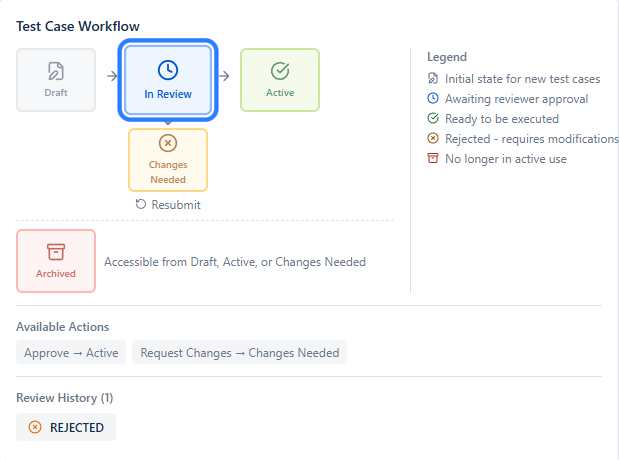
- •Approve - comments are optional. When the approval rule is met, the test case becomes Active and is ready for execution.
- •Reject - a comment is required, so the author knows what to fix. The test case moves to Changes Needed.
Good feedback is specific. Not "Steps are unclear", but "Step 3 says 'enter valid data' - list each field and an example value."
Resubmitting
The author fixes the test case and clicks "Resubmit for Review" on the Review tab. Repeat until it's approved. An Active test case can be sent for review again later, for example after a bigger change.
Approving Requirements
Requirements use the same workflow, so business and functional needs can be signed off before anyone writes test cases against them.
- •States: Draft -> In Review -> Approved, with Changes Requested when a reviewer asks for edits
- •Submit from the requirement's Review tab, with reviewers, a note and a due date
- •Approve or reject with comments, then resubmit after changes
- •An Approved requirement isn't sent back to review; move it back to Draft if it needs rework
The approval shows in the requirement's stats bar next to readiness, significance, coverage, test results and work items. See Requirements.
Review History and the Review Audit Trail
Every submission round is grouped into a Review Cycle on the item's Review tab: who asked, which reviewers, the note and due date, each approval or rejection with its comment, and when it happened. Nothing is overwritten, so you can see how many rounds it took and why.
Why it matters
For regulated teams, the review audit trail is evidence that test artifacts were reviewed before execution - often expected under:
- •ISO/IEC quality management standards
- •FDA-regulated software development
- •SOX controls for financial systems
- •Internal audits, even without an external regulator
It also helps retrospectives: when a defect escapes, you can check whether the test case was reviewed and what feedback was given.
Review history vs. execution evidence
The review audit trail covers the quality gate before execution. For execution evidence (screenshots, logs), create or link a Jira work item from the Test Player and attach the files there - BesTest doesn't store attachments itself.
Full reference: Review & approval.
Tips for an Effective Review Process
- •Use due dates. Agree on a turnaround (24-48 hours is common) and set it when you submit. Overdue reviews are flagged.
- •Rotate reviewers. A domain expert catches missing business rules; a tester catches structural issues. Spreading reviews also avoids a single bottleneck.
- •Pick the approval rule to match the risk. Any one reviewer is enough for everyday work; All assigned reviewers or At least 2 suits regulated or high-risk areas.
- •Review in small batches. Twenty test cases at once leads to rubber stamping; groups of 3-5 keep attention sharp.
- •Write down your standard. Critical-path tests (login, checkout, payment) get a thorough review; low-risk tests a quick one.
- •Don't skip review under deadline pressure. Do a lighter review (completeness and expected results) instead of none.
- •Use reviews to teach. Explaining why a change is needed is the fastest way to level up junior testers.
For a deeper checklist, read Test Case Review: Best Practices.
Frequently Asked Questions
Is the review workflow mandatory?
It's up to your Space admin. In Space settings > BesTest > Reviews, test cases and requirements each have a review mode: Off, Optional or Required. With Required, an item only becomes Active (or Approved, for requirements) through review; with Optional, authors can skip it.
Can I require more than one approval?
Yes. The approval rule can be Any one reviewer, All assigned reviewers, or At least a set number. You can also send an item to several reviewers when you submit it, and BesTest shows who it is still waiting on.
Can requirements be approved too?
Yes. Requirements use the same workflow: Draft, In Review, Approved, and Changes Requested when a reviewer asks for edits. Each entity has its own review mode in the Reviews settings.
How do I attach evidence like screenshots to a review?
BesTest does not store attachments. Add context in the review note or comments, and for files, create or link a Jira work item and attach them there.
Add Review Rigor to Your Testing
Install BesTest and review test cases and requirements with a built-in approval workflow. Free for up to 10 users.
Install BesTest Free